Chatroom Screen
Overview
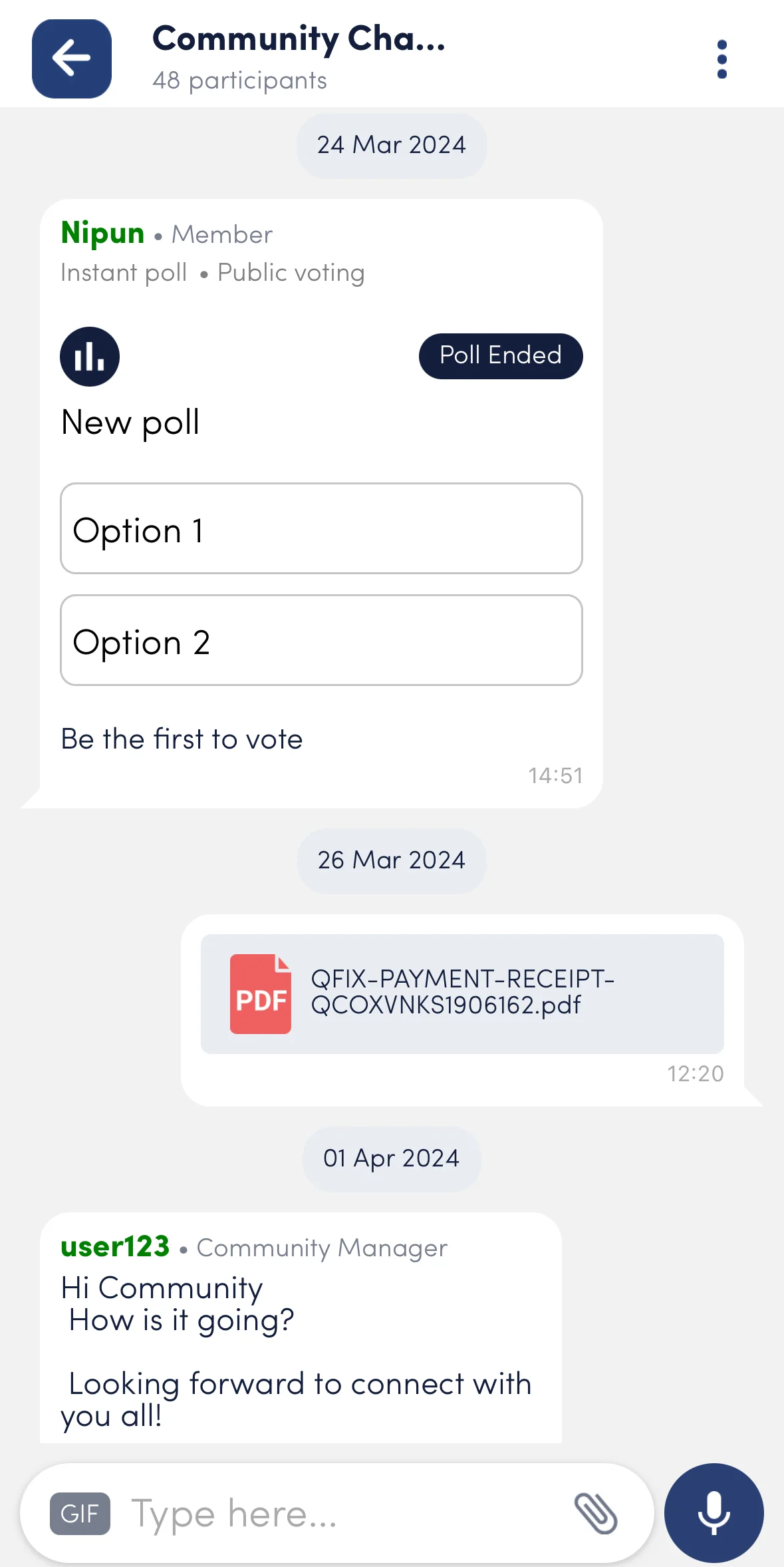
The ChatRoom screen serves as the main interface for users to engage in conversations within a specific chatroom in the LikeMinds chat application. It allows users to send and receive messages, view chatroom details, and interact with various features such as polls, media, and reactions, providing a seamless chat experience.
GitHub File:
UI Components
The Chatroom screen serves as a parent component, allowing you to incorporate as many child components as necessary, including your own custom components. Here are a few components that can be utilized to enhance the Chatroom.
Props
Interaction Callbacks
| Property | Type | Description | Optional |
| setChatroomTopic | () => void | Callback to set chatroom topic | ✔ |
| leaveChatroom | () => void | Callback to leave chatroom | ✔ |
| leaveSecretChatroom | () => void | Callback to leave secret chatroom | ✔ |
| joinChatroom | () => void | Callback to join chatroom | ✔ |
| muteNotifications | () => void | Callback to mute notifications | ✔ |
| unmuteNotifications | () => void | Callback to unmute notifications | ✔ |
| onApprove | () => void | Callback when approving an action | ✔ |
| onReject | () => void | Callback when rejecting an action | ✔ |
| blockMember | () => void | Callback to block a member | ✔ |
| unblockMember | () => void | Callback to unblock a member | ✔ |
| handleGallery | () => void | Callback to handle gallery action | ✔ |
| handleCamera | () => void | Callback to handle camera action | ✔ |
| handleDoc | () => void | Callback to handle document action | ✔ |
| onEdit | () => void | Callback to handle edit action | ✔ |
For information about more callbacks, click here
Customization Props
| Property | Type | Description | Optional |
|---|---|---|---|
children | ReactNode | Child components | ✔ |
customReplyBox | (item: any, chatroomName: string) => React.JSX.Element | Custom reply box component | ✔ |
customMessageHeader | ReactNode | Custom message header component | ✔ |
customMessageFooter | ReactNode | Custom message footer component | ✔ |
customVideoImageAttachmentConversation | ReactNode | Custom video/image attachment conversation | ✔ |
customPdfAttachmentConversation | ReactNode | Custom PDF attachment conversation | ✔ |
customVoiceNoteAttachmentConversation | ReactNode | Custom voice note attachment conversation | ✔ |
customGifAttachmentConversation | ReactNode | Custom GIF attachment conversation | ✔ |
customMessageNotSupportedConversation | ReactNode | Custom message not supported conversation | ✔ |
customDeletedMessage | ReactNode | Custom deleted message component | ✔ |
customReplyConversations | ReactNode | Custom reply conversations component | ✔ |
customPollConversationView | ReactNode | Custom poll conversation view | ✔ |
customLinkPreview | ReactNode | Custom link preview component | ✔ |
customStateMessage | ReactNode | Custom state message component | ✔ |
customReactionList | ReactNode | Custom reaction list | ✔ |
customRetryButton | ReactNode | Custom retry button | ✔ |
showViewParticipants | boolean | Show "View Participants" option | ✔ |
showShareChatroom | boolean | Show "Share Chatroom" option | ✔ |
showMuteNotifications | boolean | Show "Mute Notifications" option | ✔ |
showLeaveChatroom | boolean | Show "Leave Chatroom" option | ✔ |
showJoinChatroom | boolean | Show "Join Chatroom" option | ✔ |
showUnmuteNotifications | boolean | Show "Unmute Notifications" option | ✔ |
showBlockMember | boolean | Show "Block Member" option | ✔ |
showUnBlockMember | boolean | Show "Unblock Member" option | ✔ |
showViewProfile | boolean | Show "View Profile" option | ✔ |
showSecretLeaveChatroom | boolean | Show "Secret Leave Chatroom" option | ✔ |
For information about more props, click here
Usage Example
Step 1: Create Custom Screen and Wrapper
- In your app, create a
CustomChatroomScreenfile, wrap it with theChatRoomcontext provider and pass your customizations as props. - Now, you can create styles based on the component being utilizied, for example, for chatbubble create
chatBubbleStylesfor customisation and call thesetChatBubbleStyleto set it, orinputBoxStylefor input box customisation and callsetInputBoxStyleto set the customisation.
import {
  ChatRoom,
  ChatroomHeader,
  MessageList,
  MessageInput,
  useChatroomContext,
  useMessageListContext,

  ChatroomTopic,
  STYLES
} from "@likeminds.community/chat-rn-core";
import {InputBoxContextProvider} from '@likeminds.community/chat-rn-core/ChatSX/context/InputBoxContext';
import {ChatroomContextValues} from '@likeminds.community/chat-rn-core/ChatSX/context/ChatroomContext';
import MessageInputBox from "@likeminds.community/chat-rn-core/ChatSX/components/InputBox";

export function CustomChatroomScreen() {
  // Customize functionality props
  const showViewParticipants = true;
  const showShareChatroom = true;
  const showChatroomIcon = true;
  const customChatroomUserTitle = "Moderator";

  const {
    chatroomID,
    chatroomWithUser,
    currentChatroomTopic,
    chatroomType,
    replyChatID,
    isEditable,
    chatroomName,
    isSecret,
    refInput,
    chatroomDBDetails,
    chatRequestState,
    setIsEditable,
    handleFileUpload,
    joinSecretChatroom,
    onTapToUndo,
  }: ChatroomContextValues = useChatroomContext();
  const { scrollToBottom } = useMessageListContext();

  // customize interaction callbacks
  const customJoinSecretChatroom = async () => {
    console.log("before custom join secret chatroom");
    const response = await joinSecretChatroom();
    console.log("response after custom join secret chatroom", response);
  };

  const inputBoxStyles = {
    placeholderTextColor: "#aaa",
    selectionColor: "#3CA874",
  };

  // custom styling for input box
  if (inputBoxStyles) {
    STYLES.setInputBoxStyle(inputBoxStyles);
  }

  const chatBubbleStyles = {
    borderRadius: 10,
    sentMessageBackgroundColor: 'blue',
  };

  // custom styling for message list
  if (chatBubbleStyles) {
    STYLES.setChatBubbleStyle(chatBubbleStyles);
  }

  return (
    <ChatRoom
      showViewParticipants={showViewParticipants}
      showShareChatroom={showShareChatroom}
      customMessageFooter={<"CUSTOM_FOOTER_COMPONENT">}
      customMessageHeader={<"CUSTOM_HEADER_COMPONENT">}
    >

      {/* ChatroomHeader */}
      <ChatroomHeader />

      {/* ChatroomTopic */}
      <ChatroomTopic />

      {/* MessageList */}
      <MessageList />

      {/* Input Box Flow */}
      <InputBoxContextProvider
        chatroomName={chatroomName}
        chatroomWithUser={chatroomWithUser}
        replyChatID={replyChatID}
        chatroomID={chatroomID}
        isUploadScreen={false}
        myRef={refInput}
        handleFileUpload={handleFileUpload}
        isEditable={isEditable}
        setIsEditable={(value: boolean) => {
          setIsEditable(value);
        }}
        isSecret={isSecret}
        chatroomType={chatroomType}
        currentChatroomTopic={currentChatroomTopic}
        isPrivateMember={chatroomDBDetails.isPrivateMember}
        chatRequestState={chatRequestState}>
        <MessageInput joinSecretChatroomProp={customJoinSecretChatroom}>
          <MessageInputBox />
        </MessageInput>
      </InputBoxContextProvider>
    </ChatRoom>
  );
}
Step 2: Wrap your screen with Context Provider
import { Chat } from "@likeminds.community/chat-rn-core";
import { CustomChatroomScreen } from "<<path_to_ChatroomScreen.tsx>>";

function ChatroomScreenWrapper() {
  return (
    <Chat>
      <CustomChatroomScreen />
    </Chat>
  );
}

export default ChatroomScreenWrapper;
Step 3: Add the Custom Screen in App.tsx
- In your
App.tsx, create aStack.Navigatorin theNavigationContainerwrapped byLMOverlayProvider. - Add
ChatroomScreenWrapperas a Stack screen in yourNavigationContainer.
import { ScreenName, LMOverlayProvider, Themes } from "@likeminds.community/feed-rn-core";
import { NavigationContainer } from "@react-navigation/native";
import { createNativeStackNavigator } from "@react-navigation/native-stack";
import { ChatroomScreenWrapper } from "<<path_to_ChatroomScreenWrapper.tsx>>";

export const App = () => {
  const Stack = createNativeStackNavigator();
  return (
    <LMOverlayProvider
      myClient={myClient} // pass in the LMChatClient created
      apiKey={apiKey} // pass in the API Key generated
      userName={userName} // pass in the logged-in user's name
      userUniqueId={userUniqueID} // pass in the logged-in user's uuid
      theme={<"SDK_THEME">} // pass the sdk theme based on the Themes enum
    >
      <NavigationContainer ref={navigationRef} independent={true}>
        <Stack.Navigator screenOptions={{ headerShown: true }}>
          <Stack.Screen name={ScreenName.Chatroom} component={ChatroomScreenWrapper} />
        </Stack.Navigator>
      </NavigationContainer>
    </LMOverlayProvider>
  );
};