How to enable personalised feed?
Introduction
In this guide, you'll learn how to enable and configure a personalized feed for users in your Android app using the LikeMinds Feed Android SDK. A personalized feed helps enhance user engagement by tailoring the content they see based on their preferences, interactions, and other metrics.
Prerequisites
Before you begin, ensure the following
- LikeMinds Feed Android SDK: The SDK must be properly installed and initialized in your Android project. Refer to the Installation Guide.
- Basic knowledge of Postman or equivalent API testing tools.
Steps to enable Personalised Feed
Step 1: Enable Personalised Feed Setting
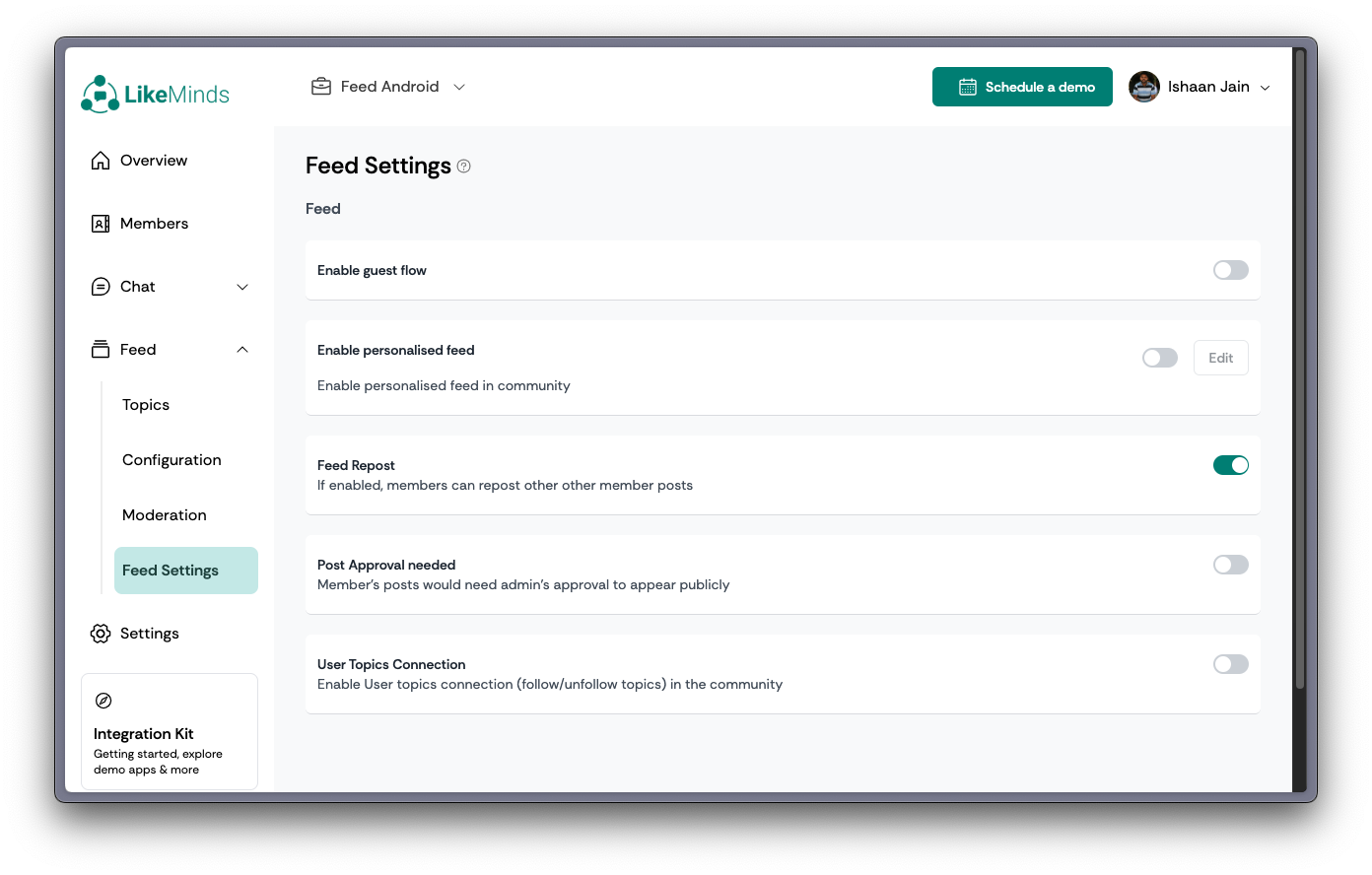
- Open your LikeMinds Admin Dashboard.
- Navigate to Feed Settings
- Enable "Personalised Feed" Settings.
Step 2: Set weigths for different metrics
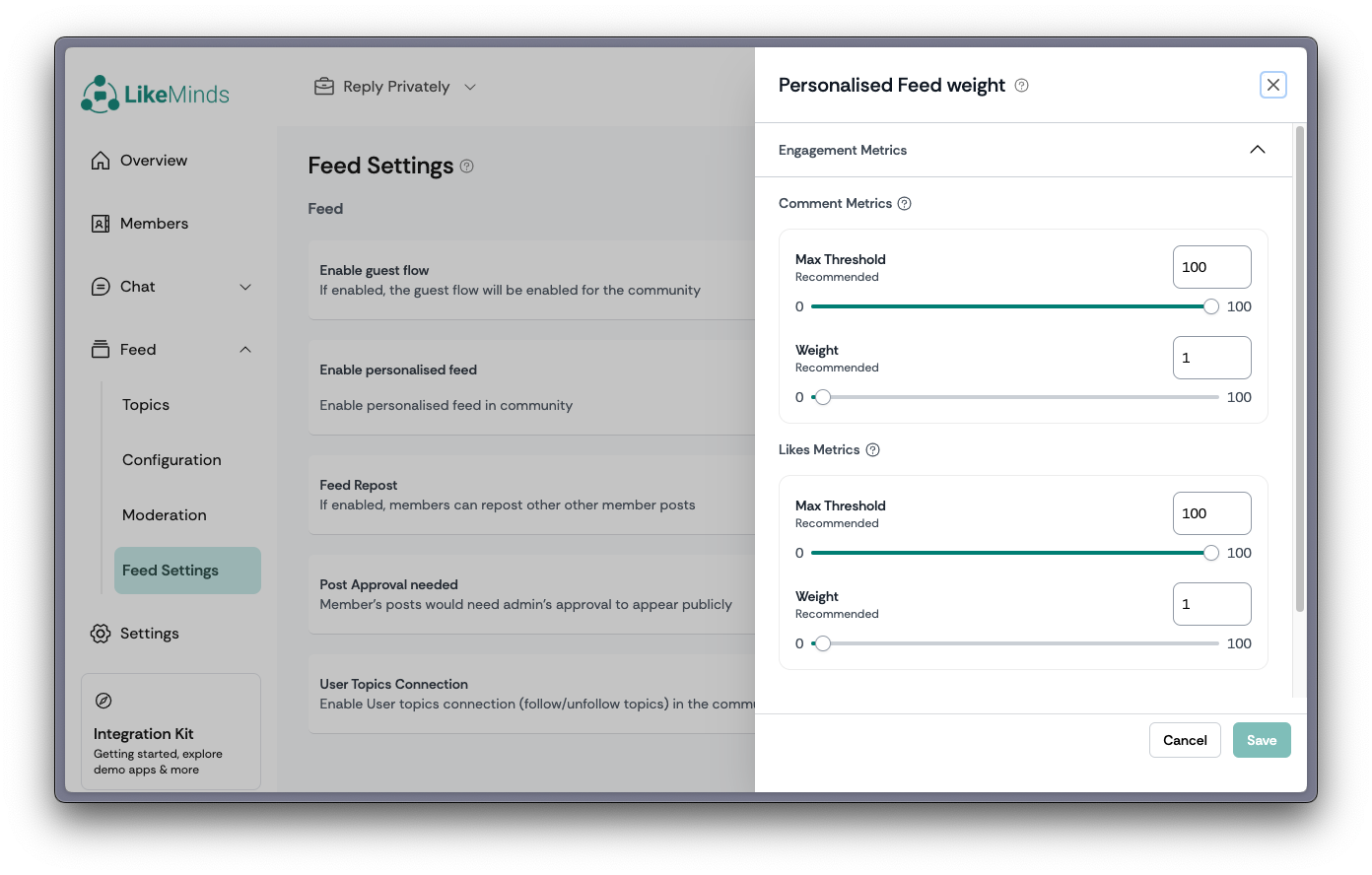
Once, Personalized Feed is enabled, you can edit all the weights to the various metric to rank the feed as your user group and requirements.
Step 3: Configure in Android Feed SDK
In the last step of Getting Started Guide, send feedType as LMFeedType.PERSONALISED_FEED in getInstance() functions of the Fragments.
- Social Feed
- Video Feed
- QnA Feed
- Kotlin
- Java
// pass this successCallback to LMFeedCore.showFeed()
val successCallback = { response : UserResponse? ->
  // inflate social feed fragment in your activity
  val containerViewId = R.id.frame_layout
  val fragment = LMFeedSocialFeedFragment.getInstance(LMFeedType.PERSONALISED_FEED)

  val transaction = supportFragmentManager.beginTransaction()
  transaction.replace(containerViewId, fragment, containerViewId.toString())
  transaction.commit()
  Unit
} // callback triggered when the initiate user call is successful
// pass this callback to LMFeedCore.showFeed()
(UserResponse response) -> {
    // callback triggered when the initiate user call is successful
    try {
        getSupportFragmentManager().beginTransaction().replace(R.id.frame_layout, new LMFeedSocialFeedFragment.getInstance(LMFeedType.PERSONALISED_FEED))).commit();
    } catch (Exception e) {
        throw new RuntimeException(e);
    }
    // callback triggered when the initiate user call is successful, write your logic here
    return null;
}
- Kotlin
- Java
// pass this successCallback to LMFeedCore.showFeed()
val successCallback = { response : UserResponse? ->
  // inflate video feed fragment in your activity
  val containerViewId = R.id.frame_layout
  val fragment = LMFeedVideoFeedFragment.getInstance(LMFeedType.PERSONALISED_FEED)

  val transaction = supportFragmentManager.beginTransaction()
  transaction.replace(containerViewId, fragment, containerViewId.toString())
  transaction.commit()
  Unit
} // callback triggered when the initiate user call is successful
// pass this callback to LMFeedCore.showFeed()
(UserResponse response) -> {
    // callback triggered when the initiate user call is successful
    try {
        getSupportFragmentManager().beginTransaction().replace(R.id.frame_layout, new LMFeedVideoFeedFragment.getInstance(LMFeedType.PERSONALISED_FEED, null)).commit();
    } catch (Exception e) {
        throw new RuntimeException(e);
    }
    // callback triggered when the initiate user call is successful, write your logic here
    return null;
}
- Kotlin
- Java
// pass this successCallback to LMFeedCore.showFeed()
val successCallback = { response : UserResponse? ->
  // inflate qna feed fragment in your activity
  val containerViewId = R.id.frame_layout
  val fragment = LMFeedQnAFeedFragment.getInstance(LMFeedType.PERSONALISED_FEED)

  val transaction = supportFragmentManager.beginTransaction()
  transaction.replace(containerViewId, fragment, containerViewId.toString())
  transaction.commit()
  Unit
} // callback triggered when the initiate user call is successful
// pass this callback to LMFeedCore.showFeed()
(UserResponse response) -> {
    // callback triggered when the initiate user call is successful
    try {
        getSupportFragmentManager().beginTransaction().replace(R.id.frame_layout, new LMFeedQnAFeedFragment.getInstance(LMFeedType.PERSONALISED_FEED)).commit();
    } catch (Exception e) {
        throw new RuntimeException(e);
    }
    // callback triggered when the initiate user call is successful, write your logic here
    return null;
}